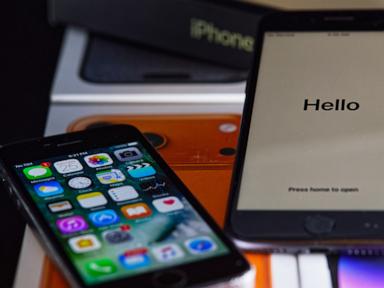
Most people spend years pecking at their smartphone glass with two thumbs, completely unaware that their device hides an entire efficiency layer just beneath the surface. Apple buried these mechanisms inside iOS years ago. The problem is discoverability. You are not meant to find them by accident. You have to be told where to look, or you have to spend a decade breaking your wrists over subpar autocorrect algorithms that substitute words you never intended to write.
The standard iPhone keyboard is a bottleneck disguised as a convenience. It forces millions of users to tap out long email addresses letter by letter, navigate clunky symbol menus to insert basic punctuation, and switch between linguistic layouts manually. This is an inefficient use of your time. Hardware has evolved into miniature supercomputers, yet human-to-device input methods remain stubbornly tied to the muscle memory of a twenty-year-old plastic QWERTY layout.
The Anatomy of the Built-In Text Expansion Engine
Every modern operating system includes some version of macro substitution. Apple implements this through Text Replacement, a feature hidden inside the general keyboard settings. Most users ignore it or treat it as a glorified autocorrect override. That is a mistake.
Text replacement acts as a local scripting engine for your typing habits. If you type a specific short sequence of characters, the system intercepts it and swaps it out for a pre-programmed block of text. For instance, you can set the shortcut @@ to instantly expand into your full email address. You can program @@w to output your work address and @@p for your personal one.
The immediate benefit involves raw keystroke reduction. A standard work email address might take forty individual taps to complete. Multiply that by thirty emails a day across five years, and you are wasting hours of your life staring at a glass screen waiting for your thumbs to catch up.
Setting this up requires discipline. You need to pick trigger strings that you would never type in normal conversation. Avoid using standard words. If you set cat to expand into a three-paragraph shipping policy, you will quickly find yourself unable to write about domestic felines without breaking your messaging app. Use punctuation prefixes, double letters, or uncommon consonant clusters.
Navigating the Cursor Without Losing Your Mind
The single most frustrating aspect of mobile text editing is cursor placement. You tap a word to fix a typo, and the cursor lands three letters to the left. You tap again, and it jumps to the end of the paragraph. You spend thirty seconds tapping furiously at a glowing rectangle, sweating under fluorescent lights, before eventually deleting the entire sentence out of pure rage.
Apple solved this problem in 2015 with the introduction of 3D Touch, and later preserved it via software through long-press gestures.
If you press and hold the spacebar, the entire keyboard instantly goes blank. The letters fade into gray outlines. At that moment, your thumb transforms into a trackpad. You can slide your finger left, right, up, or down across the empty key surface to drag the cursor through your text with absolute precision. You no longer need to stab blindly at individual pixels.
Once your cursor is parked inside a word, you can tap the trackpad area with a second finger to highlight text instantly. A quick double-tap selects a word. A triple-tap selects a sentence. These gestures require tactile familiarity. Your brain needs to unlearn the habit of lifting your thumb every time you want to move three characters to the right.
One-Handed Layouts and Architectural Compromises
Phones keep getting bigger. Human hands do not.
Apple introduced one-handed keyboard layouts to accommodate oversized Max and Plus devices, but few users utilize them properly. By holding down the globe or emoji icon in the lower-left corner of the keyboard, a prompt appears allowing you to compress the keyboard to the left or the right side of the screen.
The engineering reality behind this feature involves a compromise. Compressing the layout forces the keys to shrink, increasing your error rate if you have large fingers. The software attempts to compensate by shifting the invisible touch targets slightly outward, expanding the active hit zone for keys near the edges.
If you commute via public transit and find yourself holding a coffee in one hand while trying to answer Slack messages with the other, this feature is mandatory. Trying to stretch your thumb across a six-inch OLED display while standing on a moving train is a fast track to dropping a thousand-dollar device onto concrete.
Hidden Symbol Punctuation Tricks
Switching keyboards to access numbers and punctuation breaks your cognitive flow. Every time you tap the 123 key and switch back, your brain loses its train of thought for a fraction of a second. Over the course of a long document, that friction adds up to mental exhaustion.
There are faster ways to handle this.
You can access numbers and common punctuation marks without leaving the primary alphabetical layout by using a sliding gesture. Press and hold the 123 key with your left thumb, slide your finger to the number or symbol you want, and release. The keyboard automatically inserts the character and snaps right back to the alphabet layout. This saves you an entire tap cycle.
Furthermore, holding down specific letters reveals hidden character sets that most users assume require a third-party app. Holding down the zero key displays the degree symbol. Holding down currency symbols reveals alternatives from global markets. Holding down quotation marks gives you typographic curly quotes rather than the standard straight programming quotes.
Capitalization and Accent Shortcuts
Typing foreign languages on an English-US layout usually involves downloading secondary keyboards. For occasional use, that overhead is unnecessary.
Holding down a vowel reveals every accented variant associated with that letter. Hold down e and a small pop-up window presents é, è, ê, ë, ē, and more. Slide your thumb to the desired character and lift.
For quick capitalization, most people rely on the shift key. But double-tapping the shift key locks it into caps lock mode, a fact that is widely known yet rarely optimized. Beyond that, the keyboard utilizes predictive morphology to fix lowercase proper nouns on the fly, provided you have your settings configured to trust the local dictionary.
If you prefer to type entirely in lowercase to project a specific digital nonchalance, you can disable auto-capitalization in settings. However, doing so forces you to manually capitalize the beginning of every sentence, which defeats the purpose of efficiency optimization.
The Reality of iOS Text Prediction
Apple's QuickType bar sits at the top of the keyboard, offering predictive words based on context and conversational history.
This system operates locally on your device's neural engine. It learns your slang, your professional jargon, and your idiosyncratic typing style without sending your private conversations to a remote server. This is a massive win for privacy, but it introduces a distinct operational flaw.
The local dictionary can become polluted. If you frequently misspell a word or type a temporary joke phrase, the system locks that error into its predictive memory, forcing you to correct it repeatedly.
To clear out bad data, you must reset the keyboard dictionary entirely. Navigate to Settings, select General, tap Transfer or Reset iPhone, choose Reset, and select Reset Keyboard Dictionary. This wipes the slate clean, returning the predictive engine to its factory state. It is a harsh corrective measure, but it is necessary when your phone starts aggressively suggesting incorrect variations of words you use daily.
Putting Theory Into Practice
Knowing these shortcuts exists changes nothing if you do not hardcode them into your daily workflow.
Start small. Do not try to memorize twenty new gestures simultaneously. Pick one pain point. If you hate moving the cursor, practice the spacebar trackpad gesture exclusively for the next forty-eight hours until your thumb performs the action without conscious thought. Once that becomes automatic, program three custom text replacement shortcuts for your most frequently typed phrases.
Efficiency is not about working faster. It is about removing the friction points that interrupt your thinking. When your tools get out of your way, you can focus on the actual substance of what you are trying to communicate.